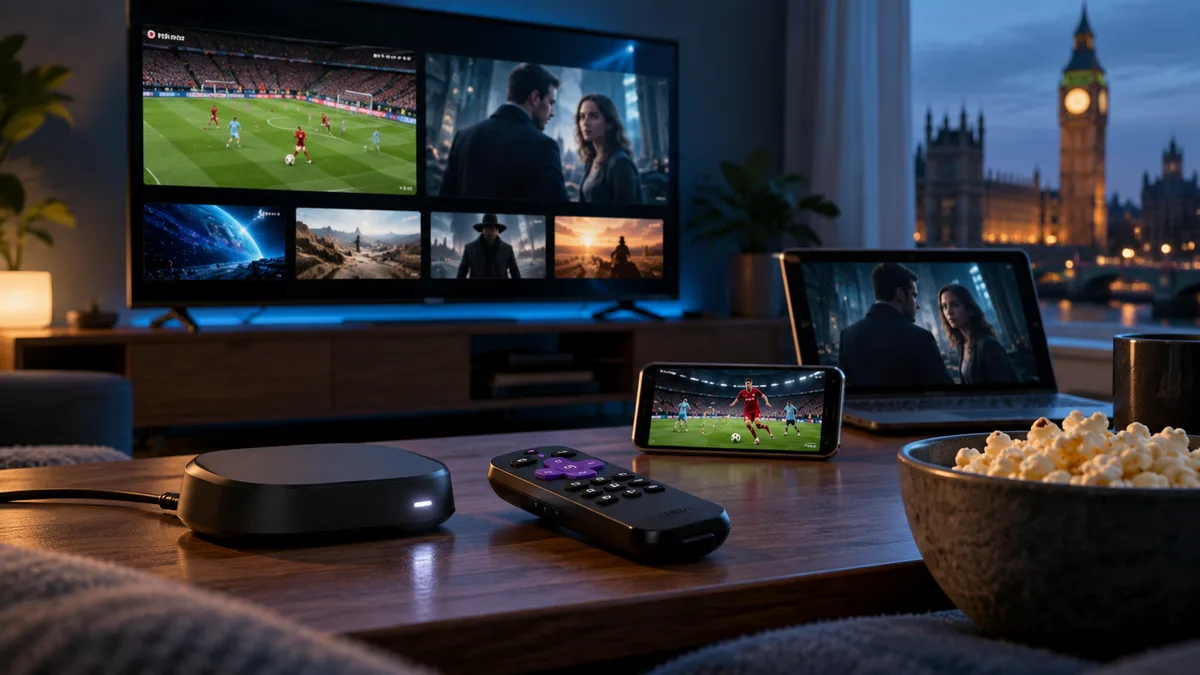
Roku is popular in the UK, built into many Hisense and JVC TVs and sold as sticks. But unlike Firestick and Android TV, Roku is a closed platform — which limits IPTV options.
Can you install IPTV apps on Roku?
Not the popular ones. Roku doesn't allow apps from outside its Channel Store, and players like IPTV Smarters and TiviMate aren't available there. Some generic M3U players appear from time to time, but features are limited.
Method 1: Screen mirroring from your phone
- On Roku: Settings → System → Screen mirroring → Prompt or Always allow.
- On an Android phone: open Quick Settings → Smart View / Cast / Screen mirroring and choose the Roku.
- Open your IPTV app on the phone and play a channel.
iPhones can use AirPlay on Roku models that support it.
Limits: your phone must stay on, picture quality depends on Wi-Fi, and phone notifications may appear.
Method 2: Generic M3U player channels
Search the Roku Channel Store for "M3U" or "IPTV player". Where available, paste your M3U URL. Expect basic features — often no TV guide, catch-up or films section.
Method 3: Switch to a more flexible device
Plug a Fire TV Stick or Google TV device into the same TV. It costs little and runs every major IPTV app. See the Firestick guide or Google TV guide.
What about Roku's built-in live TV?
Roku's own live channels are separate from your IPTV subscription and can't be combined with it.
Comparing your options
| Option | Ease | Features | Picture |
|---|---|---|---|
| Screen mirroring | Easy | Full (on phone) | Variable |
| M3U player channel | Moderate | Basic | Good |
| Add a Firestick | Easy | Full | Excellent |
Setting up your M3U playlist correctly
If you use an M3U player channel, paste the full M3U URL exactly as sent, including http:// and the port. See M3U IPTV.
Final thoughts
Roku is great for mainstream apps, but for IPTV a Firestick or Google TV device is the better buy. Try iBest UK IPTV free on whichever device you choose.