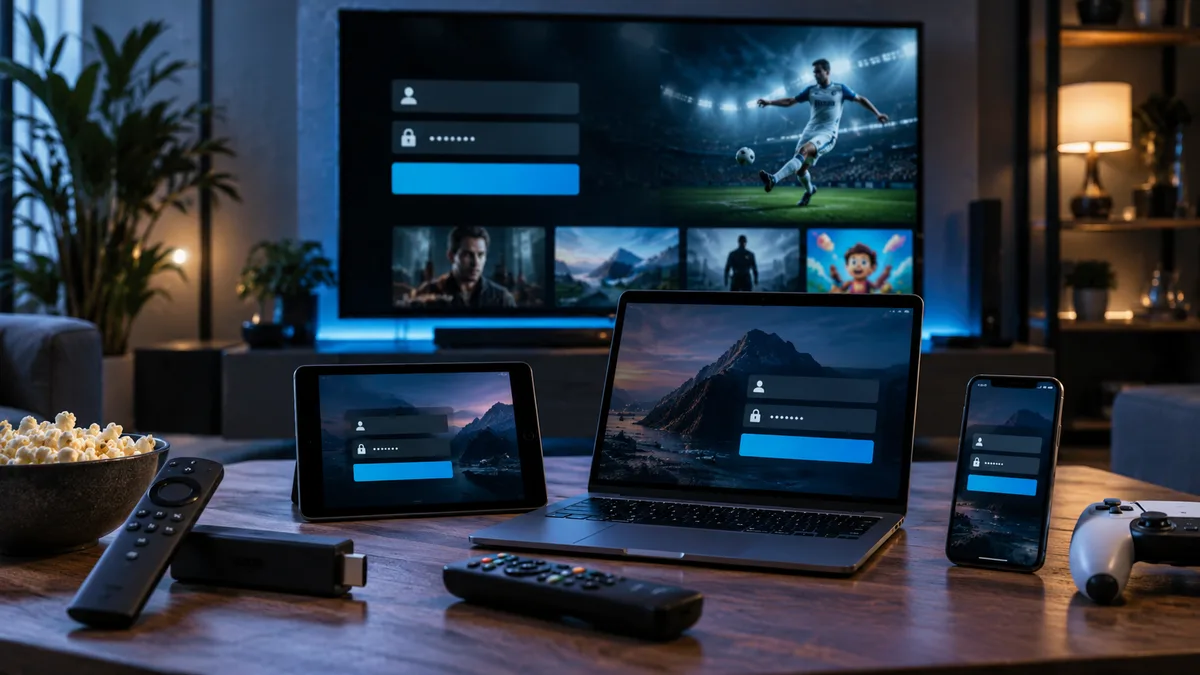
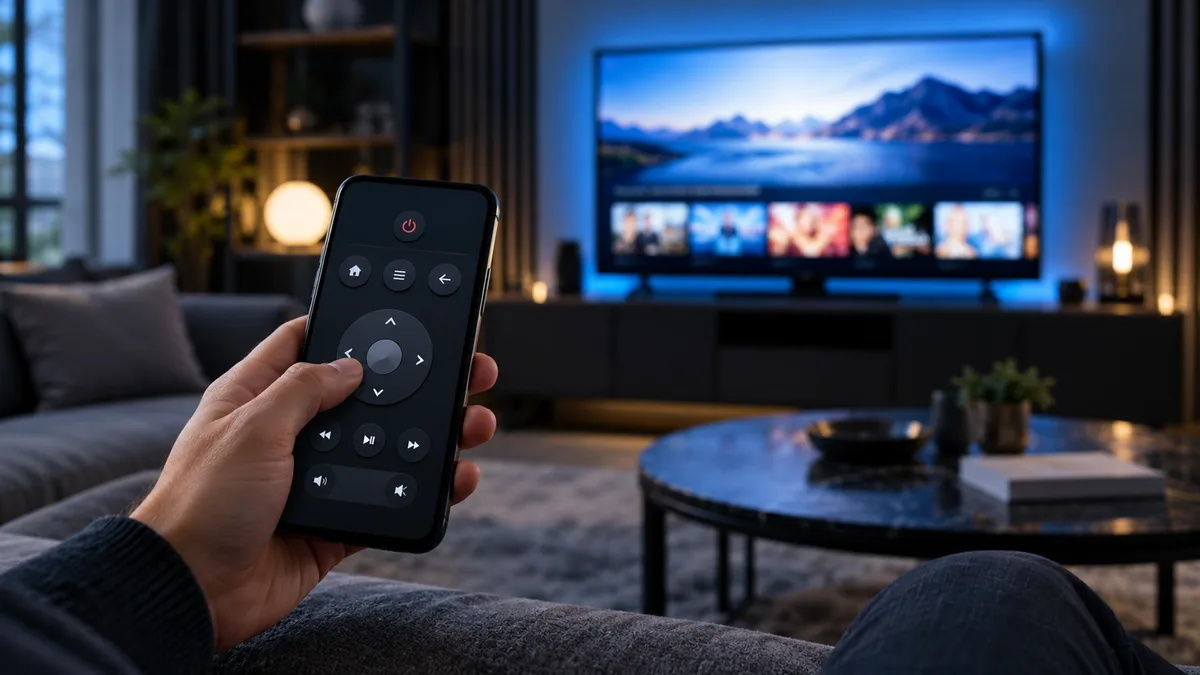
A phone remote app is the easiest upgrade you can make to your IPTV setup. Its keyboard turns typing logins and searching for channels from a chore into a few seconds' work.
Why a remote app is worth setting up
- Type with your phone keyboard — paste server URLs, usernames and passwords.
- Search for channels and films quickly.
- A backup when the physical remote goes missing.
- Help relatives from the same room without taking their remote.
Which app works with which device
| Device | Official app |
|---|---|
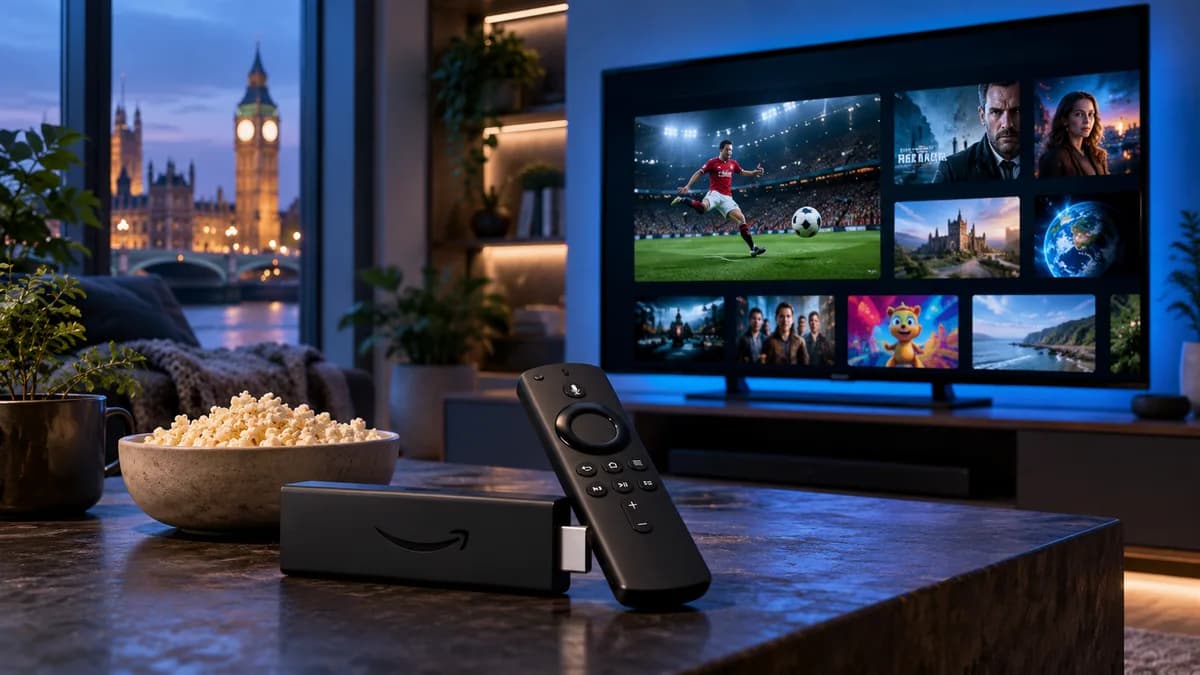
| Fire TV / Firestick | Amazon Fire TV app |
| Google TV / Android TV | Google TV app (remote button) or Google Home |
| Apple TV | Built into iPhone Control Centre (Apple TV Remote) |
| Samsung Smart TV | SmartThings |
| LG Smart TV | LG ThinQ |
Setting it up
- Install the app on your phone.
- Connect your phone to the same Wi-Fi as the TV device.
- Open the app and select your device.
- Enter the pairing code shown on the TV.
Using it for setup
When your player asks for a server URL or password, tap the keyboard icon in the remote app and paste the details from your welcome message. This avoids the most common login mistakes — see IPTV login help.
Everyday uses
- Voice search for channels and films.
- Quick volume and play/pause.
- Navigating long channel lists with swipe gestures.
When a physical remote is better
Channel-hopping and quick guide browsing are still faster with physical buttons, and older relatives may prefer them — see IPTV for elderly viewers.
Common problems
- Device not found: check both are on the same network, not a guest network.
- Keyboard doesn't appear: tap into the text field on the TV first.
- Connection drops: disable battery optimisation for the remote app on your phone.
Worth the two minutes
Set it up before you install your player, and the whole process becomes quicker. Ready to start? Get your trial login.