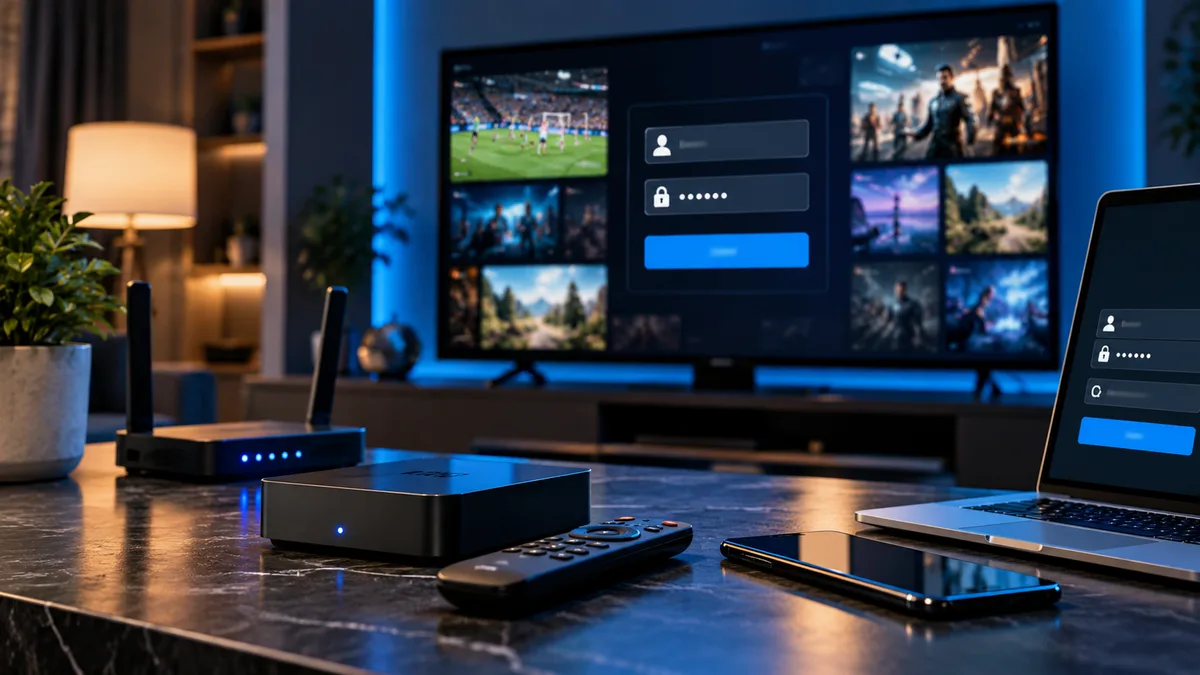
Logging in to IPTV is different from Netflix: instead of signing in to the provider's own app, you enter your details into a player app of your choice.
What you need
| Login type | Details |
|---|---|
| Xtream Codes | Server URL, username, password |
| M3U | A single playlist URL (and optional EPG URL) |
| MAC / portal | Your device's MAC address registered by us, plus a portal URL |
Where to enter your details
Most players have an Add user, Add playlist or Login screen on first launch. Choose Xtream Codes API if offered — it brings live TV, films, series and the guide together. See Xtream Codes explained.
Logging in on Firestick
- Open IPTV Smarters or TiviMate.
- Choose Login with Xtream Codes API (TiviMate: Add playlist → Xtream Codes).
- Enter the server URL, username and password.
- Click Add user / Next.
Full walkthrough: Firestick setup guide.
Logging in on Smart TV
- If the app asks for details, enter them as above.
- If it shows a MAC address and key, send them to us; we'll activate the app remotely. See MAC address guide.
Common login errors and fixes
| Error | Fix |
|---|---|
| Invalid username or password | Copy and paste; check capitals and spaces |
| Unable to connect / server not found | Include http:// and the port — see IPTV URL and port numbers |
| Account expired | Renew your plan |
| Max connections reached | Close other streams — see connection limits |
| Authorisation failed | Restart the app; contact support if it persists |
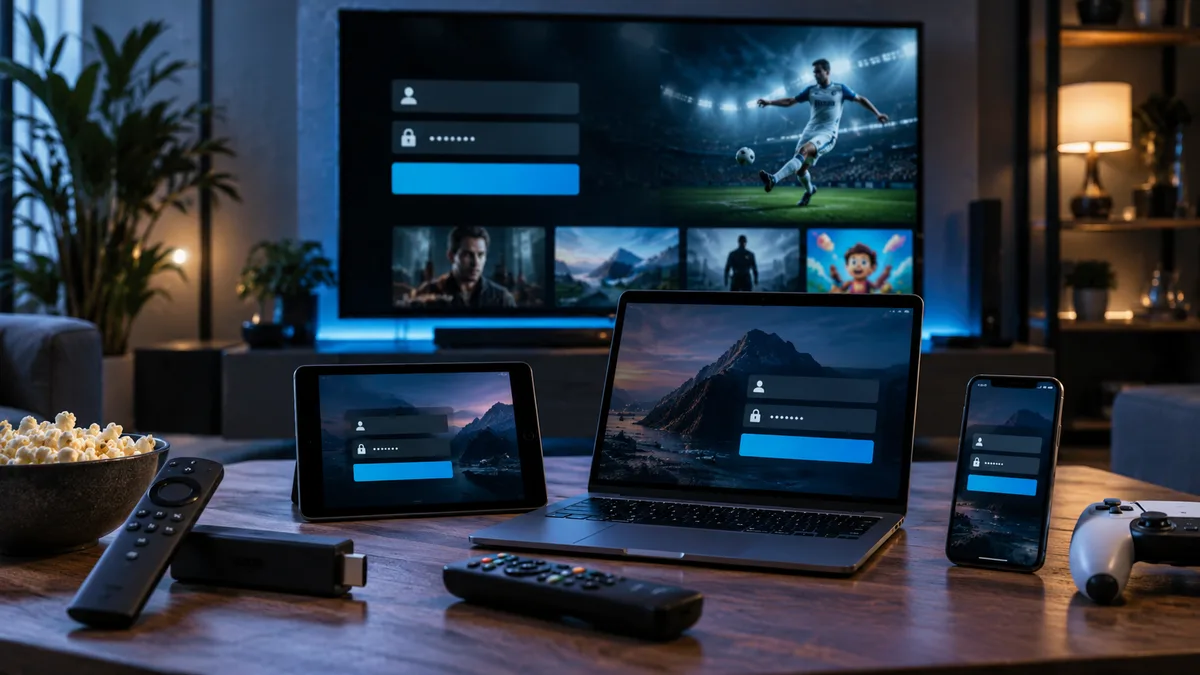
Logging in on multiple devices
Use the same details on each device. Only active streams count towards your limit.
Keeping your login secure
- Don't share it outside your household.
- Don't post screenshots containing your details.
- Ask for new details if you think it's been shared.
After you log in
The app downloads the channel list and guide — this can take a minute. Then build favourites and you're ready. See favourites.
Need your login?
Request a free trial and we'll send details within minutes during support hours.