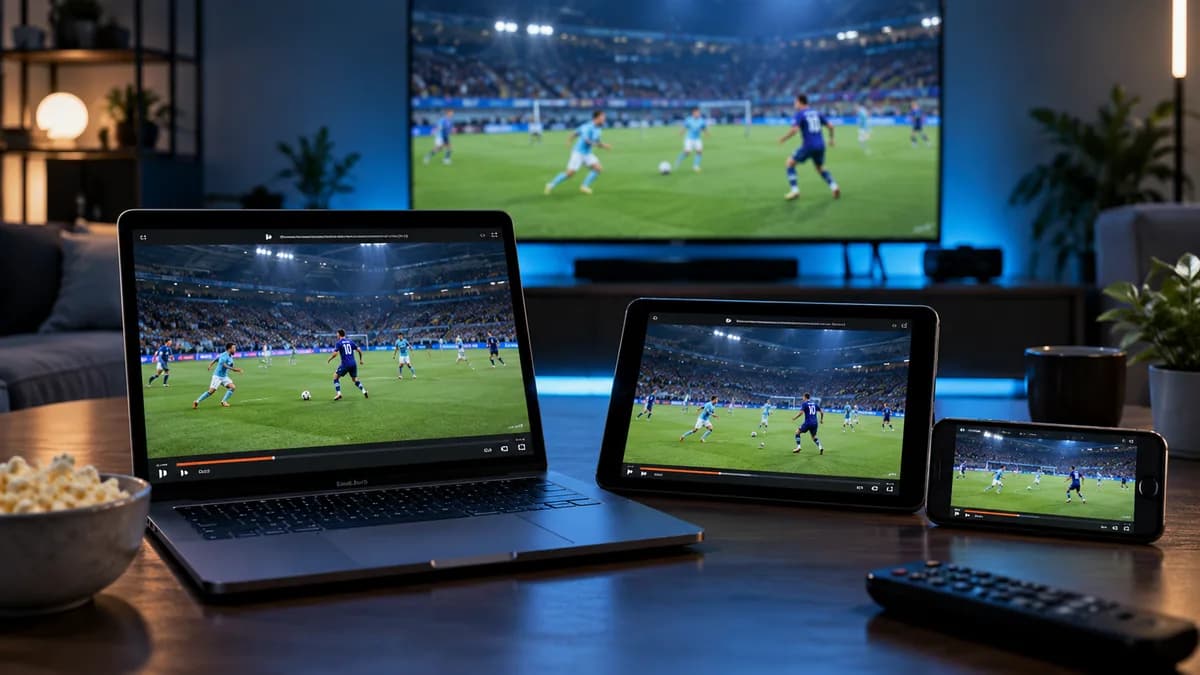
VLC media player plays almost anything, including IPTV playlists. It's ideal for quickly testing a subscription or watching on a laptop.
What is VLC and why use it for IPTV?
VLC is a free media player for Windows, Mac, Linux, Android and iOS. It can open your M3U playlist URL and list every channel.
Why users like VLC
- Free, no adverts, no account.
- Runs on almost every device.
- Plays a huge range of stream formats.
- Opens a playlist in under a minute.
What VLC can't do
- No TV guide (EPG).
- No catch-up or films/series sections.
- Large playlists can be slow to scroll.
For everyday TV, use a dedicated player. For testing and laptop viewing, VLC is perfect.
How to watch IPTV in VLC on desktop
- Download VLC from videolan.org and install it.
- Open VLC → Media → Open Network Stream (Mac: File → Open Network).
- Paste your M3U URL and click Play.
- Open View → Playlist to see and search the channel list.
- Double-click a channel to play it.
IPTV in VLC on mobile
- Android: open VLC → More → New stream → paste the M3U URL.
- iPhone/iPad: open VLC → Network → Open Network Stream → paste the URL.
VLC vs dedicated IPTV players
| VLC | Smarters / TiviMate | |
|---|---|---|
| TV guide | No | Yes |
| Films & series | No | Yes (Xtream Codes) |
| Catch-up | No | Yes |
| Setup speed | Very fast | Fast |
| Format support | Excellent | Very good |
Tips for better performance
- Increase network caching (Tools → Preferences → All → Input/Codecs) to 1,500–3,000 ms if streams stutter.
- Use a wired connection on laptops.
- Save the playlist locally if it's slow to load.
Test in three minutes
Request a free trial, paste your M3U link into VLC and check the service on your computer. Learn more about M3U playlists.